Linking products
1. Go to a product to create specifications to which products can be linked
1. Create a specification to which products can be linked
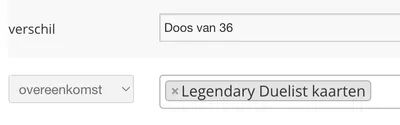
1. For example: `contract` . It is wise to choose a specification which is the same for all products to be linked. If this does not exist, then it is advisable to create a recognizable specification yourself. As we have done in the example. "Agreement", after all, indicates well what the specification is for.
2. Create a specification that the app should look at for the difference, when the matching specification is the same.
1. For example, `difference` . It might be tempting to choose a specification like `color` here. However, when products need to be linked by, say, size, this can lead to confusion. Therefore, choose a generic name that is applicable in all situations.
3. Sla het product op!


2. Open apps (the right icon in the red bar at the top)


3. Go to the settings of "Link products"
1. If you get a notification that you do not have permissions to open this app, please contact Afosto
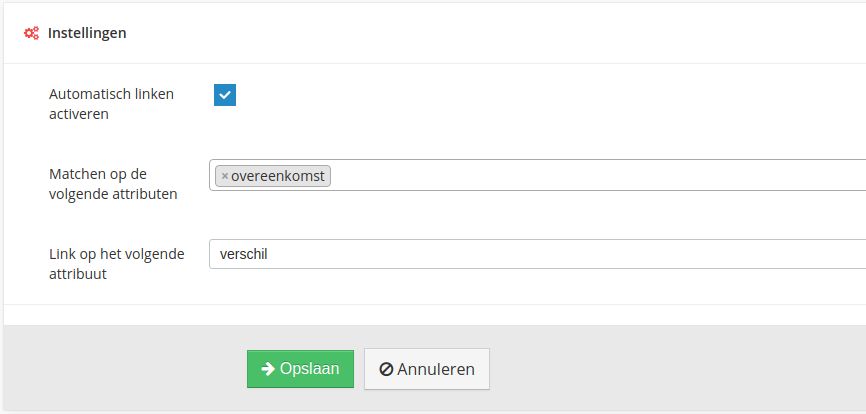
4. Check "Activate automatic linkan"
5. Choose the specifications created in step 1a and 1b for similarity and difference, respectively
6. Sla de instellingen op!

7. Now the remaining products can be provided with the specifications to link the products. If there are many products to be linked, it is also possible to perform a https://afosto.com/docs/afosto-cms/batchjobs/product-specificaties/
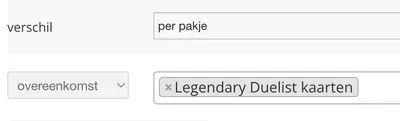
The product specifications now look like this and are linked to each other: